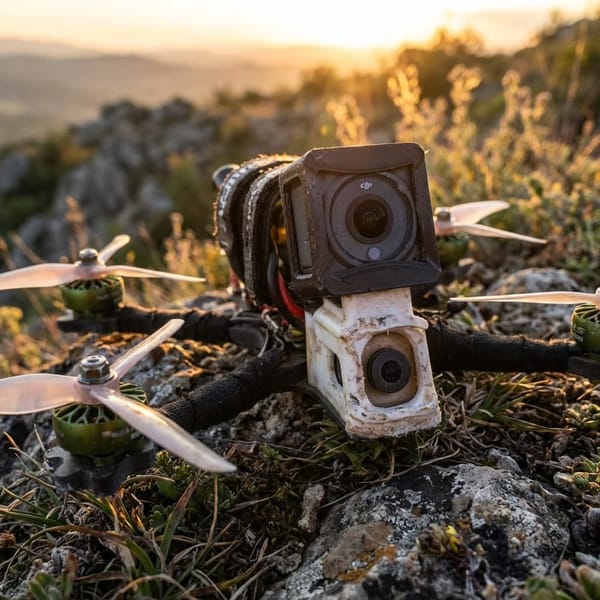
So, you’ve built a modern 6S beast. Congratulations. The motors scream, the punch-out is violent, and hovering feels like trying to balance a greased bowling ball on the end of a broomstick.
You gently breathe on the throttle, and the quad shoots for the moon. You panic-drop it, and it plummets. You are now stuck in a loop of "too high, too low, too high," looking like a drunk bumblebee while your friends ask if you’ve forgotten how to fly.
Here is the good news: You don’t suck. Your throttle setup does.
The Problem: The "10% Hover" Trap
In the old days of heavy 4S quads, we hovered at 40-50% throttle. It was luxurious. You had half the stick travel just to manage altitude.
Today? A powerful 5" freestyle rig hovers at roughly 15-20% throttle. This means your entire "flyable" range is crammed into the bottom millimeter of stick travel. The other 80% of the stick is just "warp speed." You are trying to do precision surgery with a chainsaw.
We need to fix this in Betaflight.
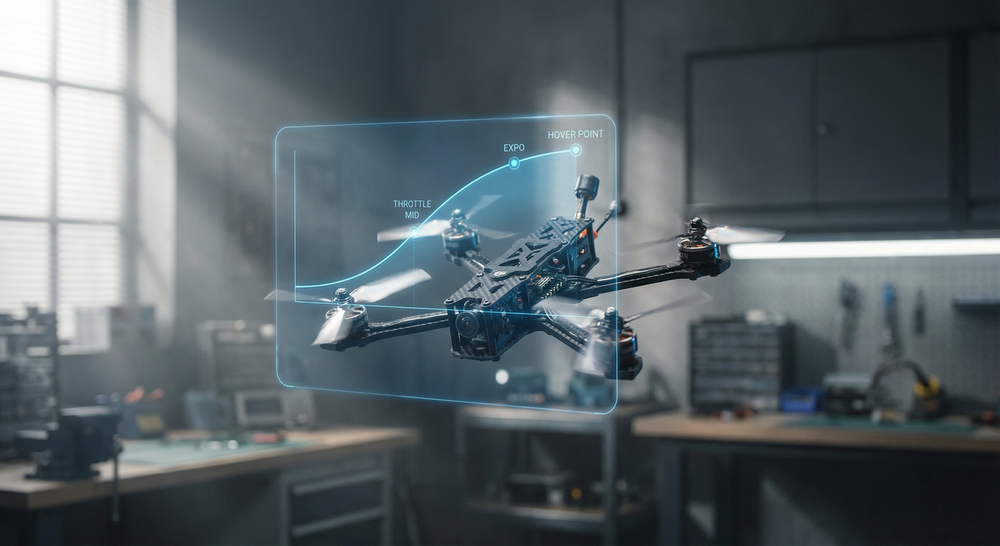
The Fix: Throttle Mid vs. Hover Point
Depending on your Betaflight version, there are two ways to handle this. Both do the same thing: they stretch out that tiny hover zone so your thumb actually has some resolution to work with.
Method A: The New Way (Betaflight 2025.12+)
If you are on the bleeding edge, congratulations, the devs finally made this intuitive.
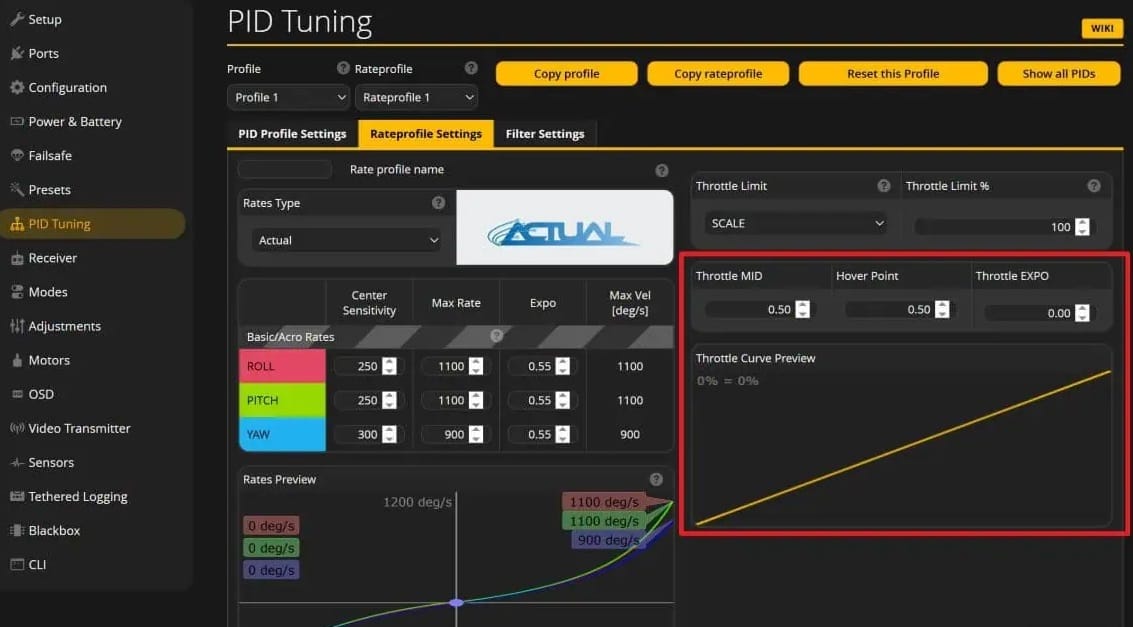
In newer versions, Betaflight introduced Hover Point. Instead of doing mental gymnastics, you simply tell Betaflight: "Hey, this thing hovers at 25%." Betaflight then automatically centers your control curve around that point. It effectively moves that sensitive hover zone to the middle of your stick (or wherever you prefer), giving you maximum resolution where you actually fly.
Method B: The Old School Way (Throttle Mid)
For the 99% of us still on older firmware.
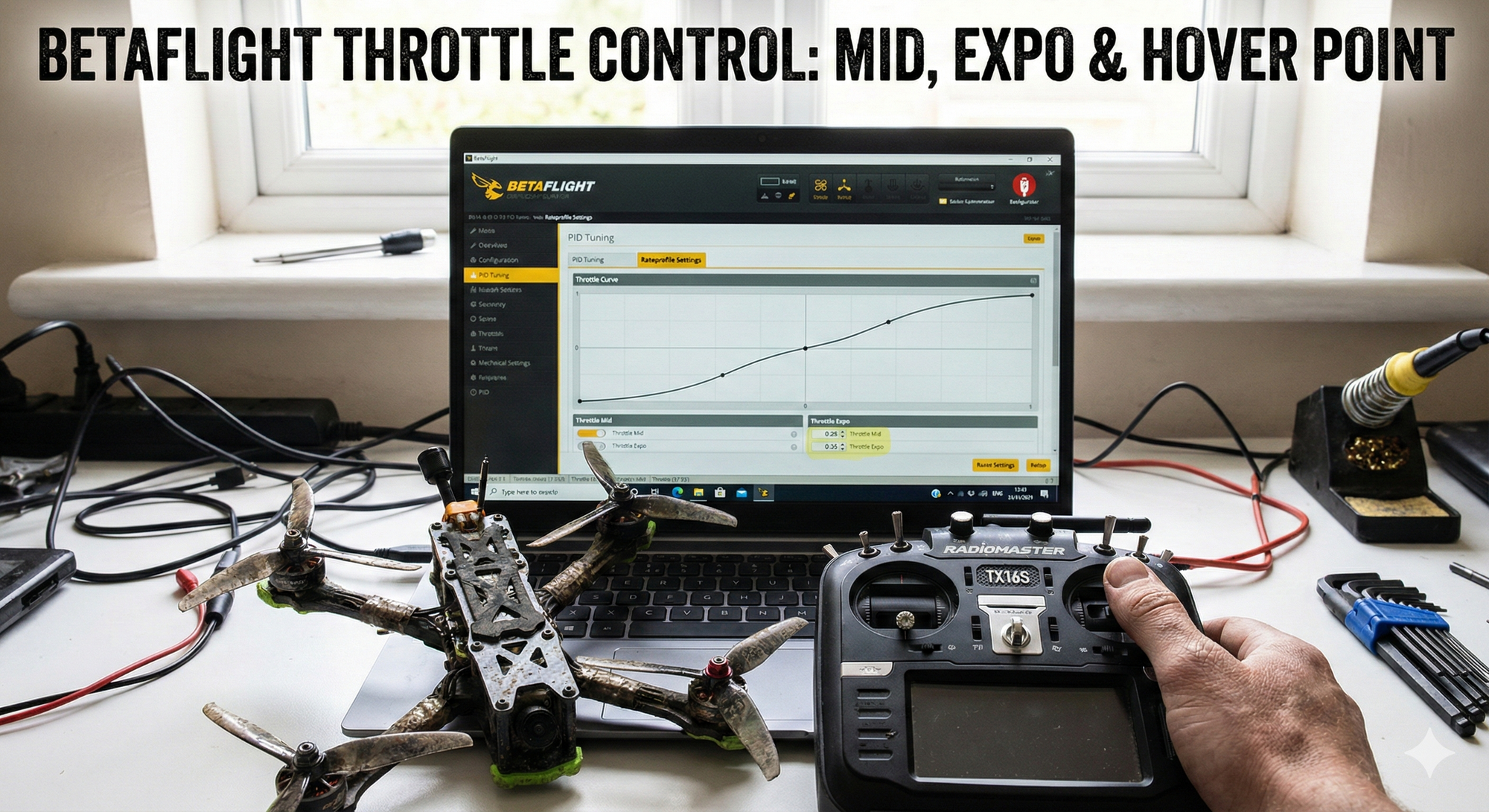
We use Throttle Mid and Throttle Expo.
- Throttle Mid: This tells the flight controller where your "center" is. If you hover at 20%, you set this to 0.20.
- Throttle Expo: This is the magic sauce. It flattens the curve around the Mid point.
Think of Expo like a magnifying glass. If you set Mid to 0.20 and Expo to 0.50, you are telling the quad: "Make the stick really soft and mushy around 20% throttle." This expands that tiny hover zone, giving you fine control without losing top-end power.
Difference between hover point and throttle mid?
Think of the difference as Physical Reality vs. Software Configuration.
1. Hover Point (The Reality)
This is a physical fact about your drone. It is the exact percentage of motor power required to counter gravity and keep the drone stationary.
- Determined by: Weight, motor size, and propeller pitch.
- Example: If your quad is lightweight and powerful, your Hover Point might be low, like 20%.
2. Throttle Mid (The Setting)
This is a software setting in Betaflight. It tells the flight controller where on the stick range you want the "softest" control feel.
- Determined by: You (entering a number).
- The Goal: You set this number to match your Hover Point.
How They Connect
If your Hover Point is 25%, but you leave Throttle Mid at default (50%), the flight controller puts the high-resolution "sweet spot" (created by Expo) at half throttle.
Since you are actually hovering down at 25%, your stick is sensitive and twitchy where you need it to be smooth. By changing Throttle Mid to 0.25, you move that smooth "sweet spot" down to exactly where your thumb rests while hovering.
In short: You measure the Hover Point so you can tell Throttle Mid where to focus your control resolution.
Step-by-Step: The "No-Guesswork" Setup
Please, for the love of propellers, do not use the Motor Tab to guess your hover throttle. Spinning up props on the bench is dangerous and technically inaccurate because there is no air resistance or PID loop activity.
Do this instead:
1. The Reality Check
- Go to the OSD Tab in Betaflight.
- Turn on Throttle Value.
- Go fly. Hover steadily for a few seconds and read the number. (e.g., oscillating between 18% and 22%? Call it 20%).
2. The Setup
Go to the PID Tuning tab > Rateprofile Settings.
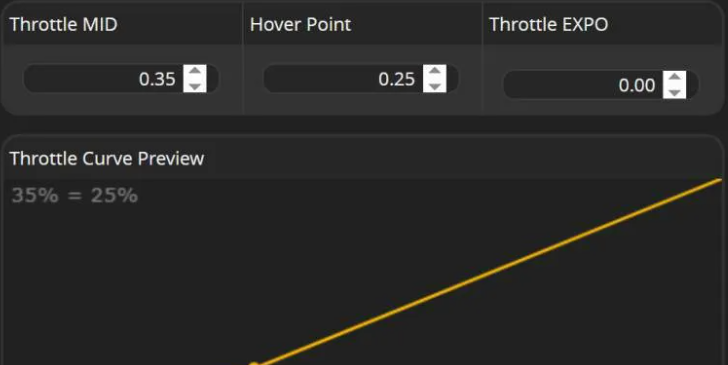
- If you have "Hover Point": Set it to your measured percentage (e.g., 20).
- If you have "Throttle Mid": Set
Throttle Midto your measured decimal (e.g., 0.20).
3. The Smoothing (Expo)
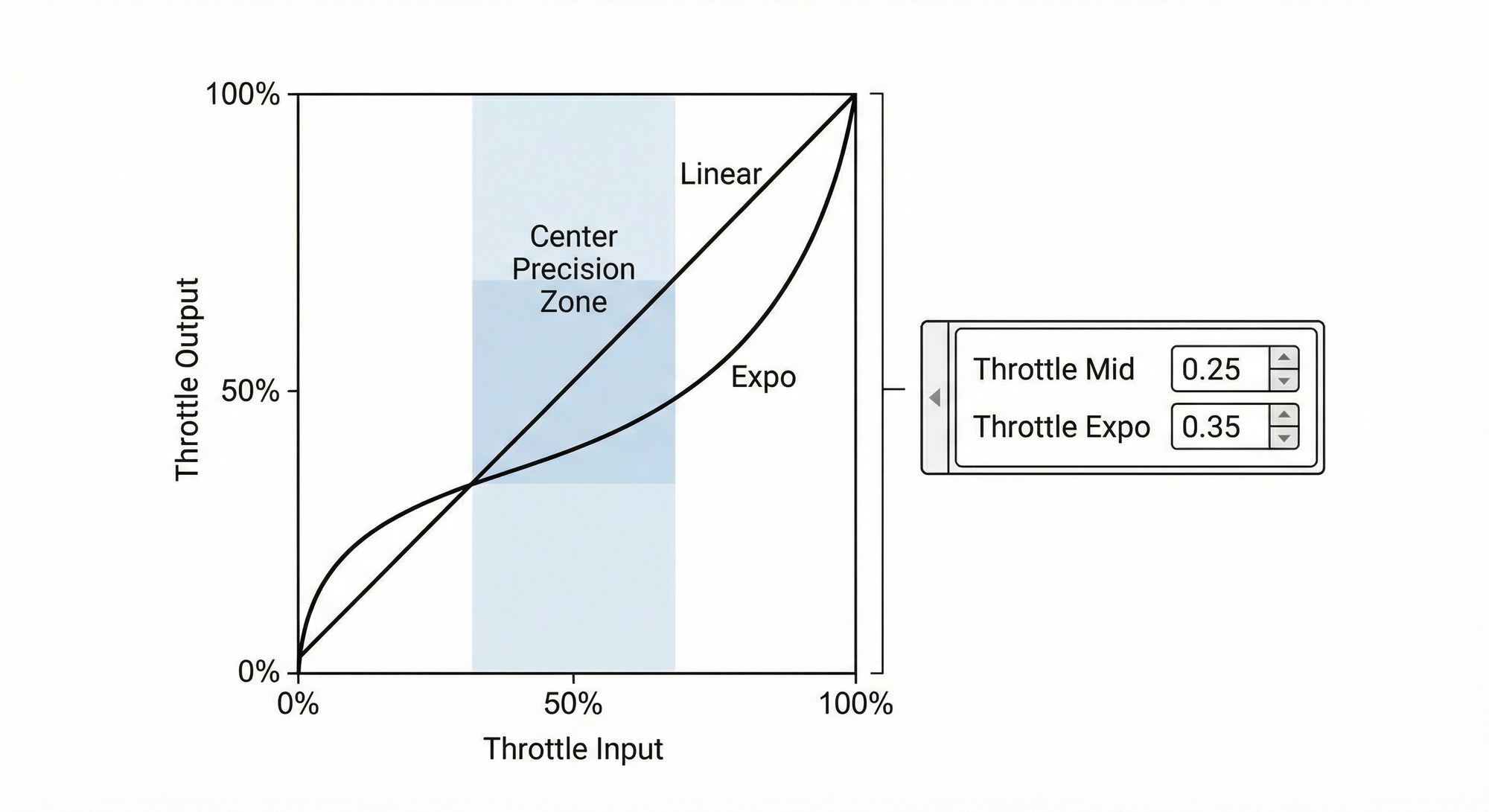
Now, add Throttle Expo.
- Start with 0.30 (30%).
- This flattens the curve around your hover point.
- 0.00 = Linear (twitchy robot mode).
- 1.00 = extremely curved (nothing happens until you hit full stick).
Tuning by Feel (The Important Part)
Don't just copy numbers. Fly it and ask yourself:
"Does it feel twitchy?"
- Symptom: You are constantly fighting to hold altitude.
- Fix: Increase Expo by 0.05.
"Does it feel mushy?"
- Symptom: You move the stick and nothing happens, then suddenly—WOOSH.
- Fix: Decrease Expo. You’ve flattened the curve too much.
"Does the hover feel like it's in the wrong place?"
- Symptom: The "sensitive" spot feels too low or high on the stick.
- Fix: Adjust your Throttle Mid (or Hover Point) up or down by 0.02.
Summary for the Lazy
- Fly and read your OSD throttle % while hovering.
- Set Throttle Mid to that number (e.g., 0.25).
- Set Expo to 0.30.
- Rip.
Suddenly, your overpowered 6S monster feels as docile as a cinematic cruiser when you need it to, but still tears a hole in the sky when you punch it. You haven't lost power; you've just gained control.
Quick Reference
| Setting | What It Does | Typical Range |
|---|---|---|
| Throttle Mid | Centers the curve at your hover point | 0.15-0.35 for powerful quads |
| Throttle Expo | Softens response near stick centre | 0.25-0.45 |
| Hover Point (2025.12+) | Sets exact hover throttle for auto curve | Your measured hover % |
Starting values for a typical 5" 6S: - Throttle Mid: 0.20 - Throttle Expo: 0.30 - Adjust from there based on feel